Start in the project
The video call entry is directly in the project, where tasks and files already come together.
Video call
Open the conversation from the team project or client portal. Tasks and shared documents give the meeting its context.
Request a video call demo (DE)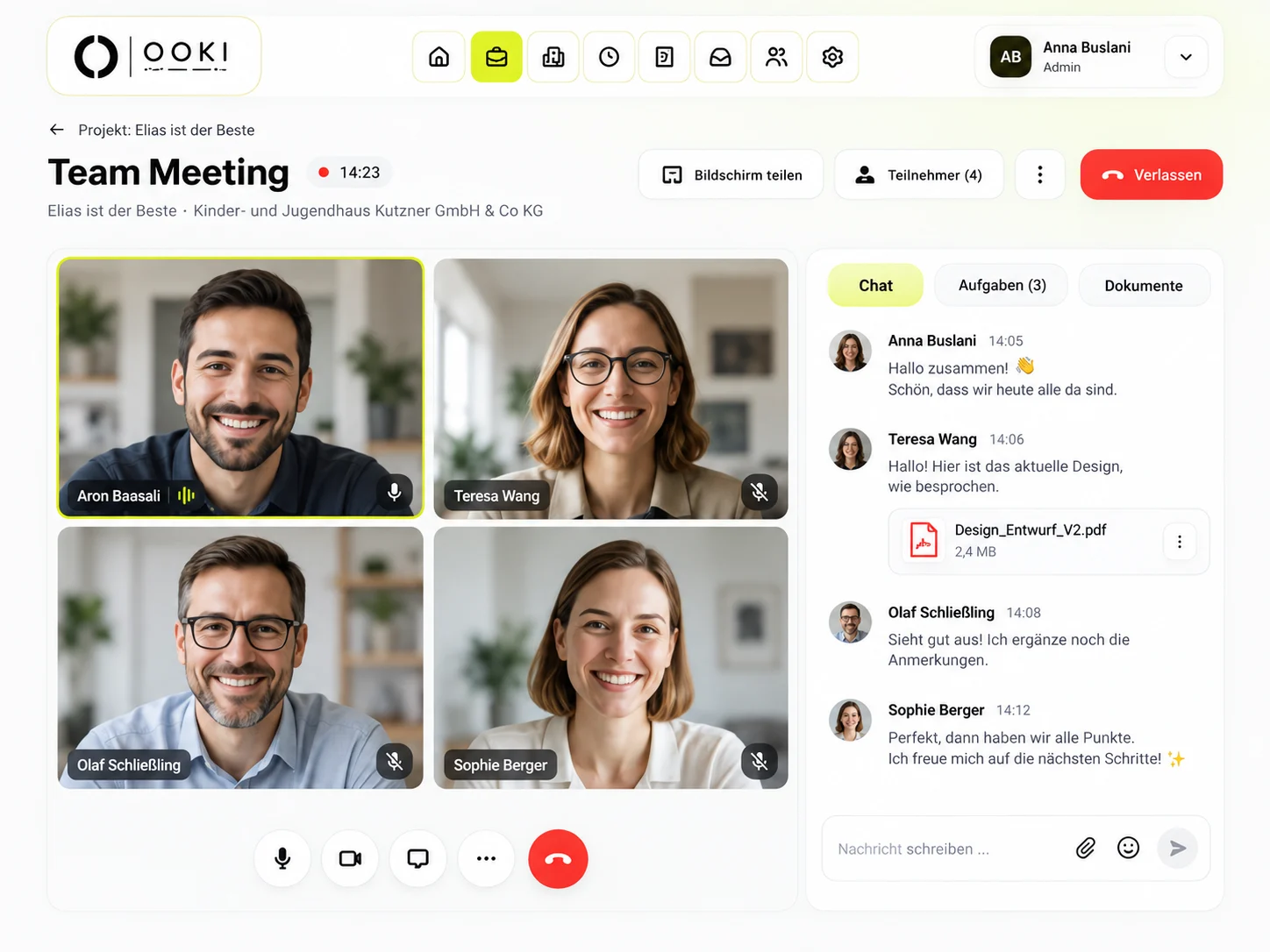
The video call entry is directly in the project, where tasks and files already come together.
There is also a call entry in the client portal. Open the document you want to discuss before the conversation.
Afterwards, add agreed changes to the relevant task and record who is responsible for the next step.
Team and client
Open the relevant tasks and shared documents before the conversation.
Participants
Open the video call entry in the project or client portal.
Project lead
Update tasks and documents with the agreed next steps.
For example: the client selects a draft, the team adds the mobile view and the project lead sets a new date. Record the decision on the task so it remains easy to find after the conversation.
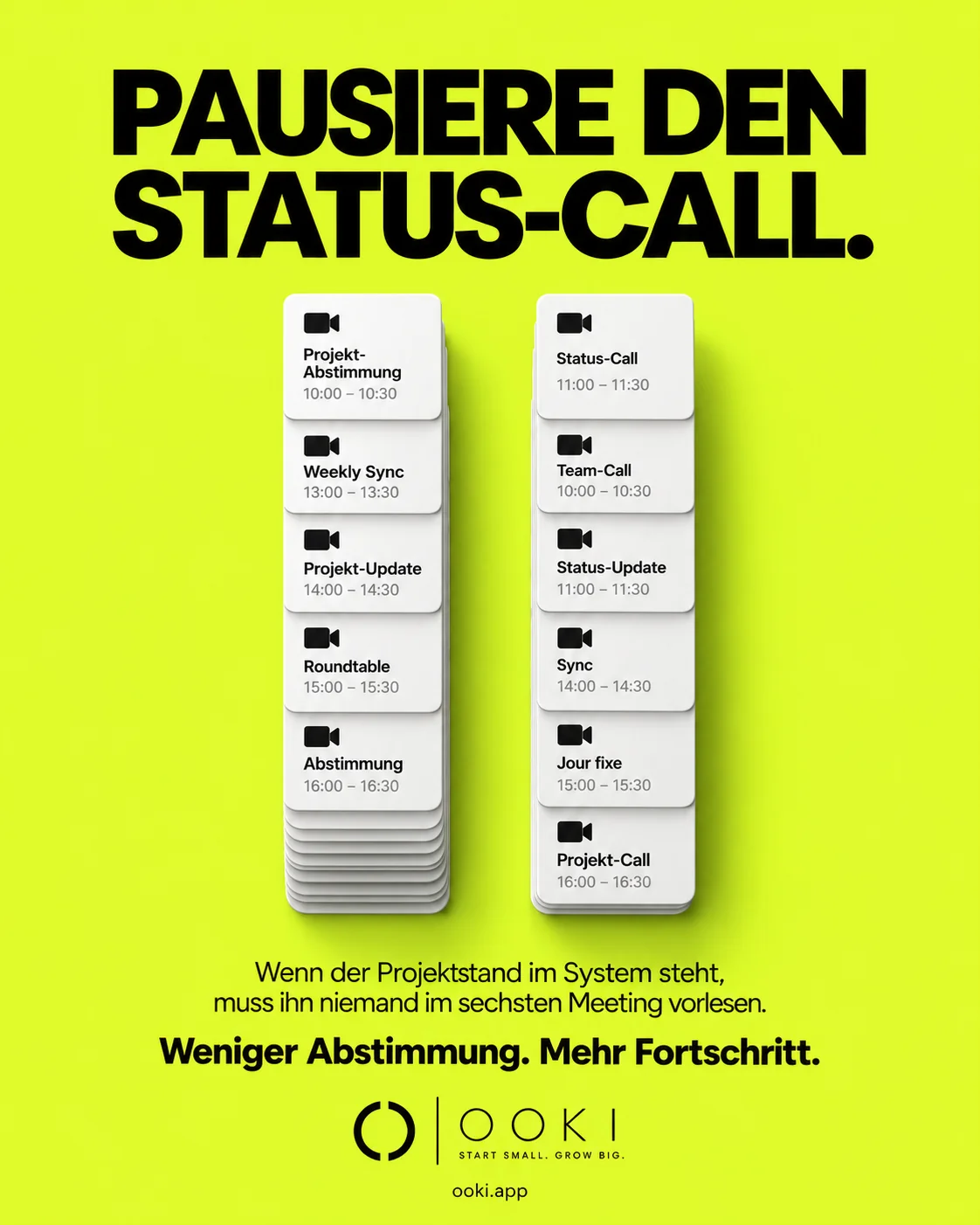
An up-to-date project answers routine questions before a meeting: Which task is open? Which file is shared? What happens next? Keep that information in the project so the next meeting does not have to begin by reading out a task list.
Video calls remain useful when you need to decide together. Share a design in the client portal beforehand, then discuss the unresolved options on the call. Tasks and documents are accessible during the conversation. Record the outcome in the project so absent colleagues can continue working.
For conversations that need a decision: reviewing a design, clarifying a document or discussing next tasks. The call sits in the project context. Chat, task and document tabs keep the relevant content close to the conversation.
The video call entry point is built into OOKI; you do not need to set up a Zoom integration in the project. Start from the project or client portal and work with its documents. Test any particular participant or network requirements before a larger meeting.
The OOKI interface includes participants, chat, screen sharing and tabs for tasks and documents. It also provides microphone, camera and leave-call controls. This lets the discussion centre on a specific project file or task.
No. Keep task progress and shared documents current so the team and clients can see where things stand. Use calls for decisions and open questions. For example, share a design beforehand and discuss only the unresolved detail in the meeting.
The entry is in the project view and client portal, so the meeting starts from the shared project status.
You can open a simulated meeting room. The demo does not access your camera or microphone or connect real participants.
Show us how you organise client meetings today and what participant and privacy requirements you have.
Request a video call demo (DE)