Tasks
Team view
Internal and client-visible tasks in the project.
Client view
Tasks selected for client visibility.
Client portal
The OOKI client portal is the shared view of a client project. Your client sees selected tasks, files, service records and invoices. Internal tasks and calculations remain in the team view.
Try the demo (DE)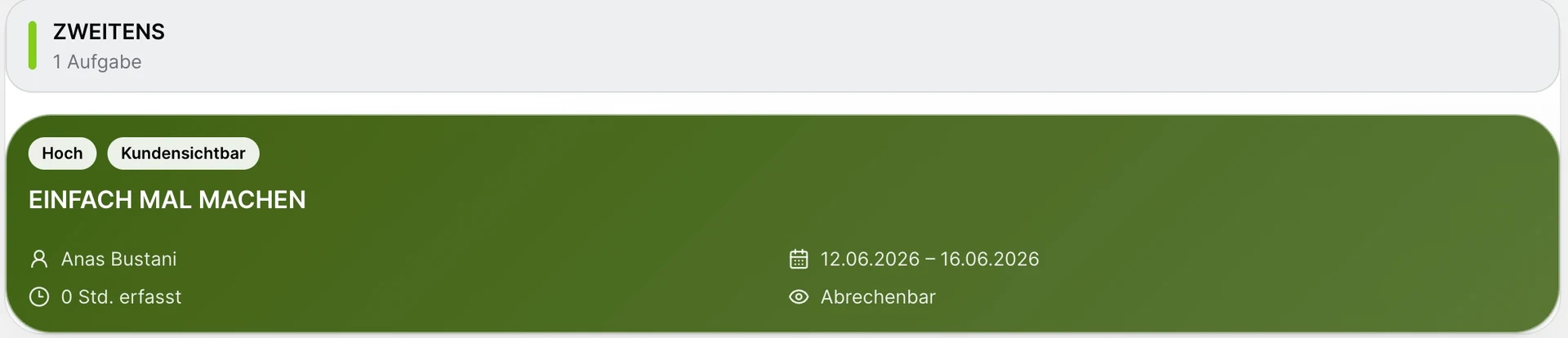
Internal and client-visible tasks in the project.
Tasks selected for client visibility.
Files marked as internal or client-visible.
Shared downloads and a dedicated upload area.
Service records and invoices in the work context.
Document versions made available in the portal.
Team
Structure tasks and documents in the internal workspace first.
Project lead
Decide which content the client should see. Internal preparation remains clearly internal.
Client and team
View progress, exchange documents and start the conversation with the same context.
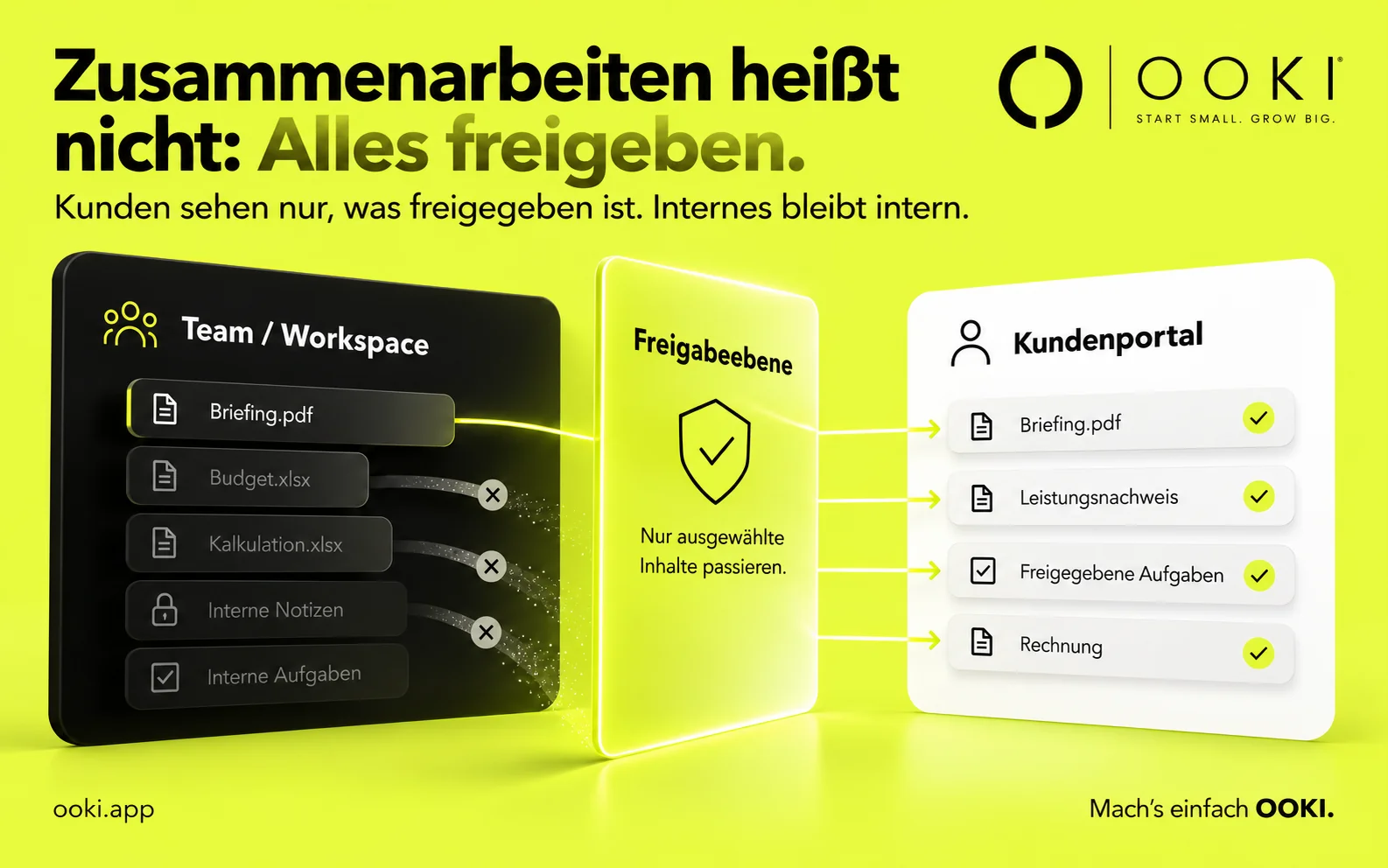
Clients need the next step and the right documents, not your entire working folder. In the OOKI portal, make the tasks and files intended for collaboration available to them. Internal notes and calculations remain on the team side.
For example, in a branding project, share the agreed brief and the design ready for presentation. Keep work in progress and internal effort estimates in the workspace. Later, add the approved service record and invoice. Always review the client view in the context of that project.
The portal gives clients access to project content shared with them. Instead of distributing a brief, deliverable and service record across separate messages, you provide them in the project context. Your team continues to work with its broader internal view.
No. The client view focuses on shared tasks, files, service records and invoices. Internal notes and calculations stay in the team view. The visibility of each item matters, rather than project membership alone.
The portal is the client’s access point; the data room is its area for project files. Clients can upload documents and download shared files there. Tasks and other project content complement this file exchange in the portal.
Start with a specific project and a few clearly named items: the initial brief, the next task and one shared result. Review the client view together. This makes it clear where new documents belong and which version of the work is shared.
The portal view has an upload area with project and task assignment. Shared downloads appear alongside it.
See in the demo what the team organises and what the client sees within the same project.
Try the demo (DE)